Turn your Google Business Profile into a useful first stop
Keep your rental business listing accurate and check how customers find pickup information, ask for a quote and confirm available dates.
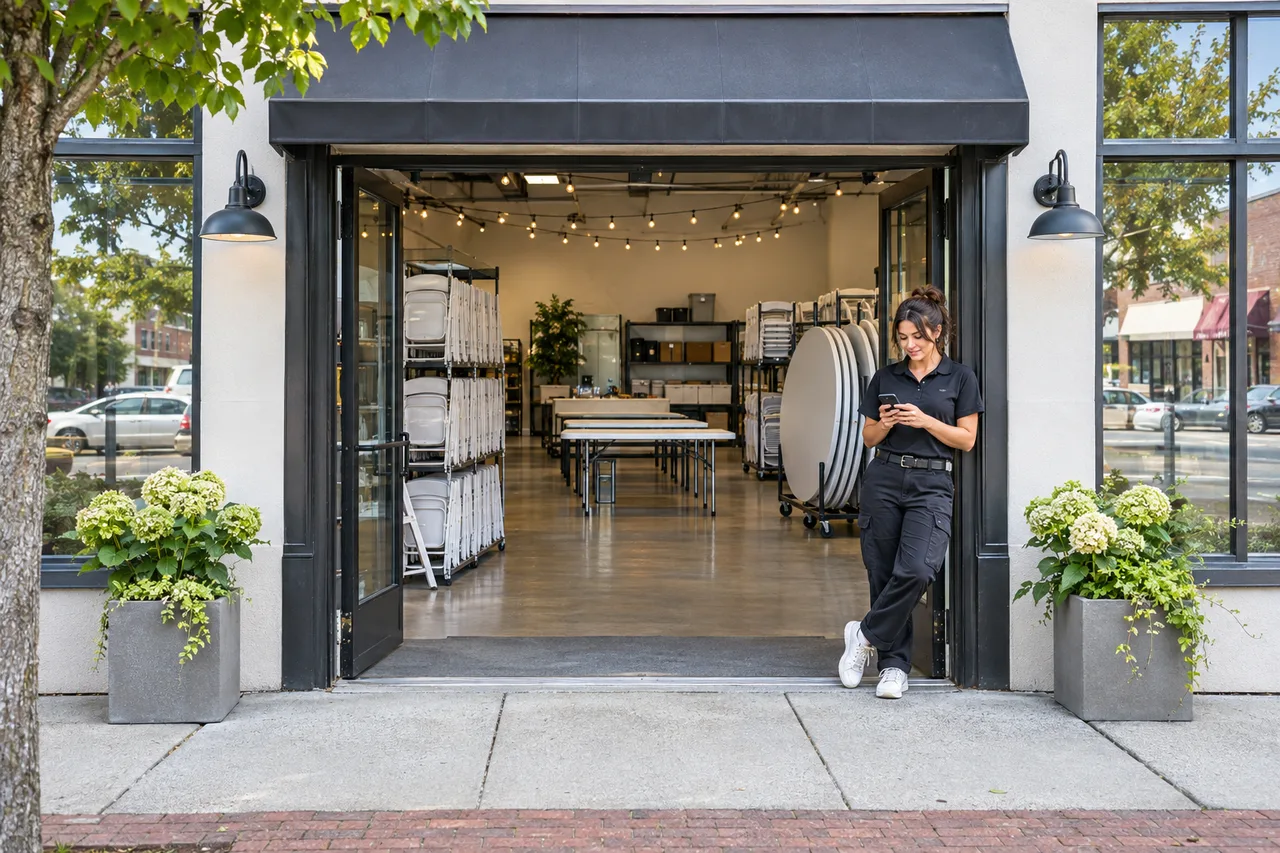
A parent looks up your rental shop on a phone and sees it is open Saturday. They still need to know whether they can pick up chairs that afternoon, where to go and how to check whether the chairs are available. Your Google Business Profile can give them a reliable first answer and direct them to the right place for the rest. Start by checking the public view of your actual listing as a customer would.
Write down a simple test request, such as twenty white folding chairs for a weekend pickup or a tent delivery to a town your business serves. Follow the profile, its website link and any available booking action. Check where an ordinary visitor learns the service area, pickup conditions and next step. Have the person who answers inquiries compare the result with how the business actually works.
Verify the details that determine whether a customer can visit
Check the name, phone and address or service area against the current operation. Use the name customers know from your storefront or communications and follow Google's guidance for representing the business. A warehouse that customers can visit has different practical information from a company that serves people at event locations. If you don't serve customers at your business address, Google provides an option to hide it and show service areas. Google Business Profile address guidance
Where the business receives customers, verify that its publicly displayed address corresponds to the place they can reach. Check the route from a phone and see which entrance a map directs them toward. If pickups use a particular gate or happen by appointment, communicate those details clearly on the linked page and confirmation where appropriate. The address helps the customer navigate, while the booking gives them the information needed for their own visit.
Review a delivery-only example as well. Confirm your actual service areas and use the profile's available fields accurately. Give customers an easy way to verify the part of the area you can serve and the kind of rental you've offered. If some jobs require a venue or access review, make the next step clear on the website. Avoid using place names merely to appear relevant to areas the business cannot fulfill. Google's service-area guidance
Keep public hours connected to customer service
Take a typical week and compare the hours the business displays with the hours people can actually reach it. Customer pickup periods can differ from office response hours, and an accepted delivery can take place outside the usual shop hours. Use the profile information appropriate for your business and explain appointment details on the website. Check the times on the phone line or messages customers receive after booking.
Review unusual hours ahead of a busy weekend, holiday or short closure. Google supports special hours for temporary changes. If a pickup appointment already exists outside changed hours, handle it through the normal booking process and tell the affected customer what was agreed. Someone arriving without an appointment should see helpful public information, while a current customer can use their specific confirmation. Google's business hours guidance
Try the view on a day your office normally closes early. Ask a coworker to find the hours and whether walk-in collection is offered. Test the link they would follow to reserve a pickup. Confirm where they would get help if the booking system has no suitable window. The profile doesn't need to describe the entire rental calendar. It should lead to current information without creating an expectation the business can't meet.
Choose photos that answer the first rental questions
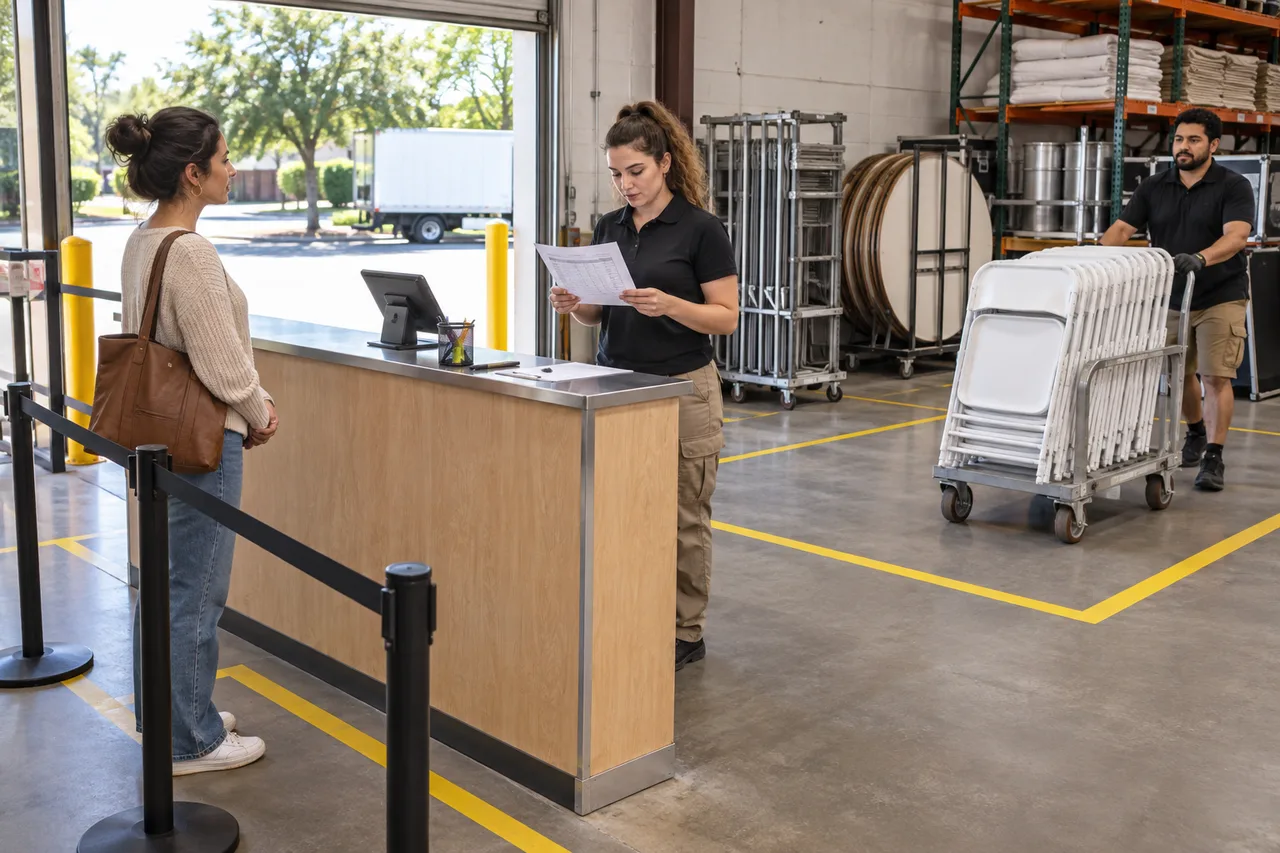
Select a few current photos of the equipment you actually rent. An event setup shows how a package can look. A closer photo helps people identify the shape, color or finish. If the business receives customers at a showroom, a current image of the correct entrance can help them recognize it. Check that the images describe a real service you can offer today.
Keep a toolkit of photographs by product or common order. A photo of a set table can help a customer recognize the furniture but may also show linens or décor from another vendor. Use the linked product page to explain exactly what is included. The public profile can help people choose what to inspect next. Review outdated photos when your catalog, vehicle, service location or appearance changes.
Ask a person who hasn't visited your shop to name what they think you rent after seeing the public listing. Compare their answer with the current catalog and service area. If most images show decorations you no longer offer, choose current equipment photographs that match the work. For visits by appointment, give customers enough to recognize the correct place after they have confirmed a time.
Send the customer to a page that supports the next decision
Use a website destination that represents the actual business and location. Choose a page that helps someone check equipment, ask about availability or start the kind of booking you accept. If an eligible action link appears on your Business Profile, verify where the link takes customers. Google offers tools for business links and preferred actions where supported. Google's guide to local business links
Pick the destination based on what a customer needs after comparing you with other options. A table renter might want to open the furniture catalog and choose a date. A tent customer may need to request a quote because the team checks the venue. Use the actual service and describe what happens after someone selects the action. If the quote form can't immediately confirm stock, don't suggest that submitting it completes the order.
Open the link from a normal phone without signing into the business tools. Check the correct business name, service area and action. Try a date with capacity and a date when the business is full through your normal test routine. See whether the visitor can choose another eligible date or ask a helpful question. A clear destination makes the listing useful even when the customer doesn't already know what a certain package includes.
Test the calls and forms that follow the listing
Verify that the listed phone reaches the appropriate business and that staff know where to direct the common calls. An employee answering should know which dates, product types and delivery areas they can check. Give them a current link they can share through the usual process if a customer would rather browse first. If a phone call happens outside response hours, confirm the expected message and how a person can follow up.
Try a practice quote request from the linked page. Check the information the customer can provide and what reaches your office. Verify the event date, equipment and area are sufficient for a useful next step. The confirmation can explain when an employee will review it. If the request can be completed as a reservation, check the eventual result with the office rather than assuming the booking worked because a page opened.
Use a second location as a fixture if your business has one. Confirm that the profile, map route and landing page apply to that location. A single support number might need a way to route specific inquiries under your current operation. Verify which store can serve the order and what details the renter will see. A short test by location catches links or phone instructions that point people to the wrong branch.
Walk one customer through from search to a workable rental
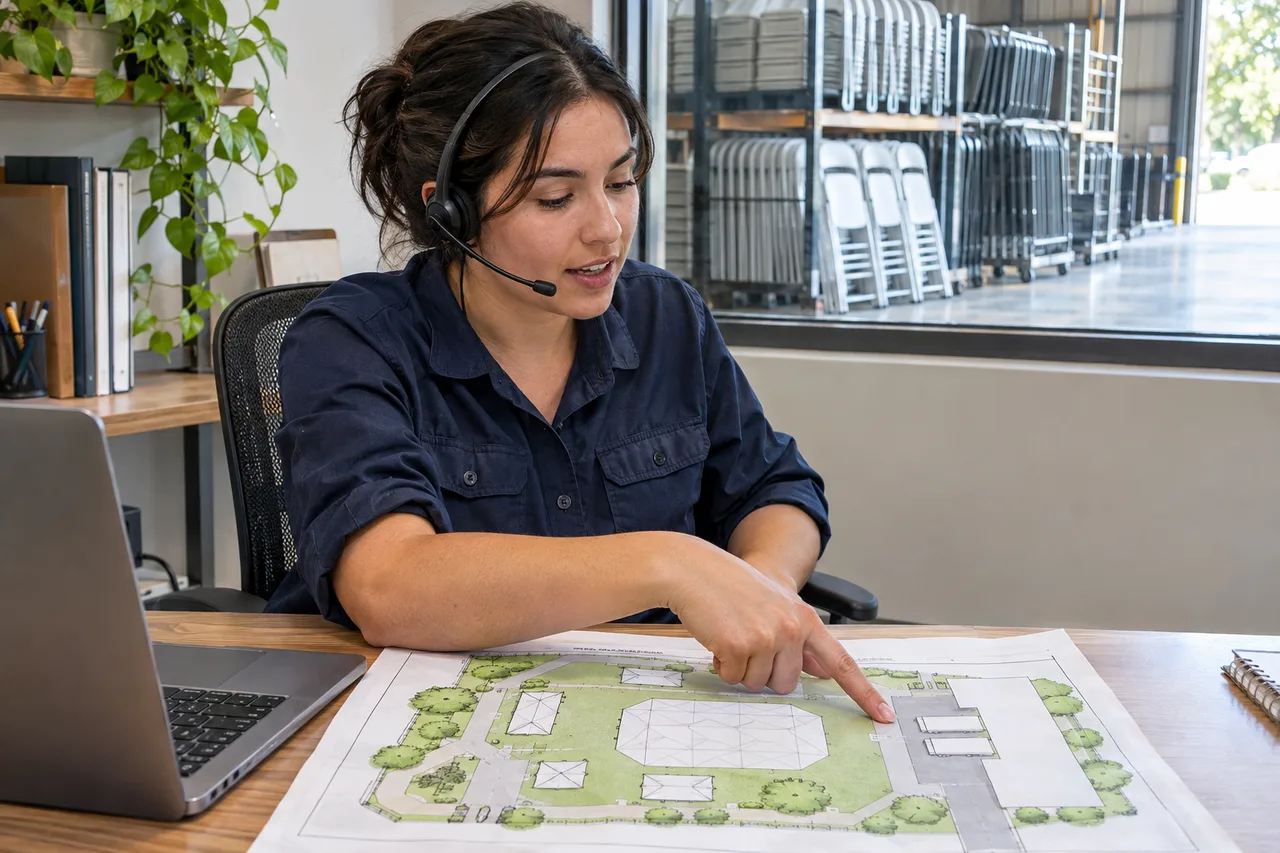
Imagine a customer searches for chair rentals near a venue. They open your profile and see the correct service area and phone. A current photo shows the type of chair they need. They follow the link into the catalog and check their date. The business has enough pieces for a pickup, but a delivery for that location needs review. The customer understands the two paths and chooses the one that fits their event.
At the office, the team sees which product and dates they are asking about. An employee checks the location and gets back with the current options. Once the order is accepted, the customer gets the correct address or venue instructions. Ask the warehouse which part of the information needs to stay visible until the pickup. The profile worked as a first stop because each later step carried the customer toward something the business could fulfill.
Repeat the example on a holiday when pickup is unavailable even though some delivery teams are scheduled. Read the public hours and the website's date selections. A person should be able to tell whether they can visit, book another day or submit a request for an event. That check shows whether the profile and booking rules describe services consistently when the schedule differs from an ordinary week.
Test appointment instructions after the customer books
A short sentence in a listing can help someone decide whether to call. An order confirmation has to get a particular customer through the right door at a particular time. For a shop that confirms pickup slots, review a test confirmation from an ordinary weekday. It should identify the agreed arrival time and location and tell the customer what to do on arrival. Include the best contact method for a delay. Ask the warehouse team whether the instructions match what the receiving employee can see and which entrance is suitable for loading the equipment. A generic description of the business can't provide those details for every order.
For example, a showroom might have a front door on Main Street and a commercial pickup gate nearby. The public listing can help a visitor find the showroom during public hours. The warehouse can give a renter with a confirmed pickup the separate gate, appointment time and unloading instructions. Try both directions yourself as a driver. If the same link brings both people to the front door, keep the public page accurate and correct the destination in the confirmation. When a renter changes from pickup to delivery, check what instructions the newest confirmation contains and what staff should say if the renter opens an earlier message.
Update a seasonal limit in the places that control the promise
A delivery business might serve an outer area in spring when its calendar is light and concentrate on nearby venues during the busy season. Suppose delivery into a particular town ends after the last weekend in May, with a few earlier confirmed orders already in place. List the dates and towns affected and ask dispatch to verify the cutover against the orders already on the calendar. Have the owner review what the public business profile currently says and when it should change. At the same time, check that the website asks for the event location and date before staff promise delivery. A shopper in the affected area should receive an accurate answer about the requested date.
Give the staff member testing the setup two requests. Use the same approximate basket and town for both, with one date on each side of the schedule change. For the earlier date, check whether the team can review the order and explain the available delivery window. For the later date, verify that someone can offer a viable alternative such as pickup if the business has one. Compare the delivery settings, website explanation and staff reply. Write down where a disagreement appears and ask the person who owns that part of the process to fix it. If the rule changes again, reuse the two scenarios with dates that fit the next season.
Keep track of who can make and verify a change
If most listing work falls to a single employee, write down who can cover scheduled updates when that person is away. Keep the shop's list of expected public details in a place the team already uses. Record the exact location name and the address or service area as applicable, public business hours, the contact number and the site links alongside who verified them. Keep the date of the check and a note of any pending change. A launch-day screenshot can show someone which public details need attention, but a current phone check is more helpful before a holiday or a major venue weekend.
Bring one contact through the process after an edit. For example, a customer tries to reach the office Friday afternoon to confirm a Saturday pickup. A staff member can open the public listing, follow the current number, verify that the line rings where the office expects and check what the caller would hear if nobody answers. The person can then follow the website link and locate the section that explains when an appointment is confirmed. Keep the result and the next owner beside the change. The useful end state is one where the public information, the people answering calls and the team fulfilling bookings give a customer compatible directions.
Learn which contacts became bookings
Use the information your business already collects. Ask where customers found you when appropriate and record an answer the office can use, such as seeing the profile or following a link from Maps. Compare calls or forms with inquiries the business could serve and orders that were actually accepted. A website visit or call can point to interest, while a confirmed order describes work the shop can perform. Keep those outcomes distinct when reviewing what to change.
Read a few cases that didn't fit. If people often ask about your pickup address despite opening the profile, check the link and customer-facing instructions. If a frequent request comes from outside the service area, choose a clearer service description. When callers want dates that are already full, check whether the destination page helps them find an alternative. Those observations connect the listing to a practical customer decision.
Make one change and review similar examples again. The goal could be easier directions, fewer calls about hours or more inquiries that include a usable event date. Traffic might change for seasonal reasons, so check actual cases rather than attributing every new inquiry to an edit. Use the details staff can verify to decide which part of the profile or website needs the next update.
Assign someone to keep the profile current
Give one role responsibility for checking the public listing after changes to hours, addresses, phones or the catalog. Keep the current website destination and the date it was tested easy to find. Have another employee open the public view after a change and verify the normal example. What staff see in the editor and what customers see from a phone can differ during an update, so check the public result.
Review important details before the busiest rental season. Confirm the active service area, hours, current photos and the path to a quote or reservation. Give the front desk an example it can use when someone calls from the listing. Keep a short note about which contact route needs follow-up. A customer should be able to choose a next step even if their original request doesn't fit.
Update a saved practice task when the business adds a location or changes the work it offers. Use a common product and a normal day, then try an unusual day with limited service. The listing is doing the job when people know how to reach your business, what can be checked now and where to get a current answer for a specific rental.