Test your rental team’s mobile workflow on site
Test your rental crew’s mobile workflow at loading, delivery and collection, including weak connections, changed instructions and partial returns.
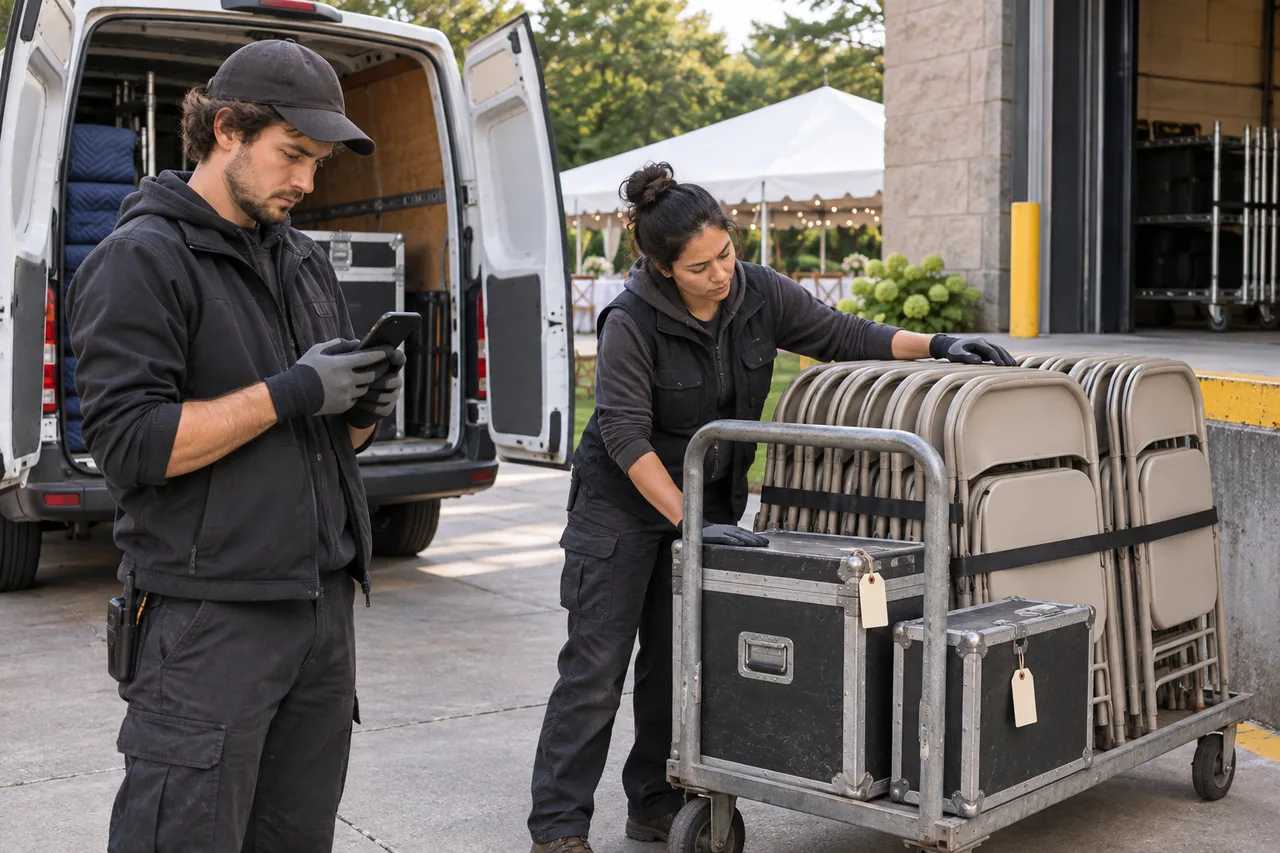
The route sheet looks clear in the office. At the venue, the driver unlocks a phone with dusty gloves, waits for the page to load and finds three contacts with no indication of who will open the service door. After unloading, the driver takes a photo but cannot tell whether it reached the booking. The next stop is waiting while the office tries to piece together the handoff.
Test the mobile workflow where the crew actually uses it. Give staff a sample route and normal devices, then watch them find the next stop, record what happened and move on. Include the conditions that are hard to reproduce in an office. The test is successful when the team can continue from the right record and the back office can see what has been completed.
Choose a route and a short list of tasks to observe
Begin with a realistic set of stops. For a party rental business, that could be a curbside drop-off, an indoor setup and a return collection. Identify which tasks each employee performs at each location. The driver can check directions and receiving contact. A helper might confirm which groups came off the truck. Someone may need to report a change before finishing the handoff.
Use test bookings with fictional customer details. Make the equipment, timing and service work resemble ordinary orders. Include a route change and one return exception. Decide which records should exist after each step so the team can compare the device with the office view. Giving the lead a clear expected outcome makes it easier to distinguish a training problem from an issue with the workflow.
Pick a realistic place and time. An accessible practice area or an approved test visit can approximate the dock, warehouse and return station without interfering with a customer. Use the light, noise and equipment the crew expects. Conduct checks when people can safely stop and use a device. Avoid asking them to interact with a phone while driving, carrying gear or doing other work that needs their full attention.
Define what to capture. Note which screen staff use, when they have to stop, whether another link or app is needed, and which questions they ask the office. Time the important tasks when useful, including how long it takes an employee to confirm that an update reached the booking. Observe one person who knows the system and one who covers the job occasionally.

Check the information before the vehicle leaves
Open the route on the device the crew will carry. Verify the order of stops, named entrance, arrival window and on-site contact. For a grouped delivery, identify which items belong to the relevant room or customer. The route should show how to identify a job without opening several unrelated booking notes.
Check which version is current. While one employee has the route open, have the office change an approved time or contact on a sample booking. See how the change appears and what the field employee needs to do to receive it. The driver should be able to distinguish the revised instruction from the detail they saw earlier. Check whatever printed copy or message the team also uses.
Verify access from a regular staff account. The crew needs the information and actions relevant to assigned work. Confirm that the phones, tablets or shared devices can open the intended route and record a handoff. Test the actual roles the business uses, including a helper who should see different information from a manager. Give staff an appropriate fallback if a device or session is unavailable.
Record whether a last check helps before driving. A useful route display can show a named receiving contact or flag one still pending. A dispatcher can then resolve it early. If employees have to open every stop just to verify that basic details exist, see whether the needed information can be placed on the route summary or addressed in the preparation process.
Observe the handoff in conditions the crew recognizes
Ask a crew member to open the next stop, identify the expected equipment and verify what the venue will receive. Use the device in the normal position of the work, with the crew paused at an appropriate moment. Find out whether the relevant controls are readable in sunlight, usable on a narrow screen and easy to reach.
Verify the actions staff can use. A worker may check items, take a permitted photo, collect an acknowledgment or record a partial return. Ask them to perform one of each action the business depends on. Check what happens after they press save. A visible success, pending state or helpful error tells the crew whether they can move to the next stop.
Try an ordinary correction. The employee may select the wrong item count or open the wrong stop before recording an update. Use a test booking to see how they identify the mistake and correct it through the approved process. Check whether the office can distinguish the earlier entry and the actual result. An employee should not need access to administrator tools for an ordinary correction they are authorized to make.
Use a real handoff sequence. A driver may set the whole order at the dock, meet the receiving contact and then record which portion was accepted. A setup crew may need to check two rooms. Give each role a way to record the part they observed and see what remains. The return record should show the actual equipment difference without closing items still due.
Check what happens when the connection is weak
Find out which tasks require a connection and which can use a supported offline method. Test a sample booking with the expected fallback in a safe environment. See how the worker finds the address or current instructions and records the work. Do not assume a page will stay available because it was opened before departure. Check what the application actually supports.
Test the transition back to connectivity. An update may wait to sync or need entry through a different approved process. Verify that the employee can tell when it reaches the office. Compare the count, time and any allowed attachment with what actually happened. Check that normal retry behavior does not record a completed handoff twice. If the result remains unclear, give the crew a route to ask dispatch before repeating the action.
Give the fallback a clear place in the schedule. A worker might use an approved route sheet and record one note at the next connected stop. The office can reconcile it with the booking by reference. Keep information appropriate to the device and storage method. The point of the fallback is to let the crew work with the information it needs while keeping the final record accurate.
Try a change during a period when the driver cannot see a message immediately. Decide how time-sensitive instructions reach the crew once they are available. Use the approved contact process and check how the office knows the driver received it. Keep the route and customer update aligned with the actual decision. A change can be in the app without yet being known to the person making the next handoff.

Walk a change and a partial return through one route
Imagine a morning delivery of 40 chairs, then an afternoon pickup of twelve tables. The morning venue changes its service entrance before the truck leaves. Dispatch records the new receiving point and notifies the driver. The crew opens the stop and shows which entrance and which contact apply. A printed floor plan is still useful because it shows the room, while the named receiving point comes from the current order.
At the first stop, the crew checks 40 chairs and records the handoff according to the approved process. The phone shows an update waiting while the connection improves. The employee can see which action is pending and avoids creating a second count. When they return to coverage, dispatch sees the one completed handoff with the expected quantity.
The afternoon pickup receives ten of the twelve tables. The venue keeps two under an agreed later plan. The driver records ten collected and a note that two remain at the site. The warehouse receives the ten and checks their condition. The office can see the remaining two and the expected follow-up without calling the driver to interpret an incomplete note.
Review the two stops from the office and field side. Check which record shows the confirmed receiving point, what was delivered or returned and whether another action remains. If an employee would read “complete” as meaning all twelve tables were back, revise how the return is displayed. A useful test sets the team up to close actual work without disappearing exceptions.
Decide what deserves a smaller screen and what belongs elsewhere
Identify the details the crew needs in the moment. Address, time, contact, expected items and next action often deserve the top of the screen. Keep supporting diagrams and approved notes reachable. Billing history or unrelated contacts can stay with the roles that need them. Removing visual noise can make a phone easier to use even when the workflow has several necessary steps.
Keep action labels connected to the result. “Record ten returned” is more useful than a vague confirmation button if the employee needs to verify the quantity. “Save for sync” can describe an update waiting for connectivity if the system supports that state. Choose wording that tells staff what happened and what they can do next.
Test how staff keep their place. An employee might open a map, make a call and then return to the stop. Check whether the route still shows the correct booking and any work saved earlier. Try moving between a staging view and a return view without losing the selected order. Little interruptions are common in field work. Observe them while the route is easy to change.
Review the parts better handled before departure. The venue layout or exact capacity of a cart can be verified in the office or at the warehouse. Give the crew only the decision and relevant reference they need at the site. A good mobile flow can help people act quickly when the upstream information is accurate.
Test a shared device and a crew change
Include a stop where the person who opened the order is different from the person who finishes it. An early worker might stage items and record the count, then a driver takes over after a warehouse shift change. Give both people the same assignment through the normal process. Check that the driver can find the staged count, see who recorded it and tell what still needs checking. A useful test also covers the opposite situation, where a job moves to another route and the original crew needs an obvious signal that it has been reassigned.
Some crews use a shared phone or tablet. Test the normal sign-in and device handoff with the people responsible for it. Have the second person open their assigned stop after the first person ends their shift. Check that actions are attributed to the right worker and that orders outside the new assignment stay out of view. Include the process for a low battery or broken device. The person replacing it should be able to find the last confirmed step without borrowing someone else's access or searching a private message thread.
Choose one attachment the business actually needs for operations. For example, a return photo might show the condition of a marked tabletop and the visible rental label. Compare what the worker sees while the image is waiting with what the warehouse sees once it is attached to the booking. Check the permitted size or count limits using ordinary examples. If the record already contains a good picture, the next person should be able to recognize it before uploading another. Record which role reviews it and how the crew learns when a clearer picture is needed.
If taking a photo requires stepping back into an active lane, wait for a safe location and follow the business's normal procedure. The field test should reveal whether the person can record the important information under normal working conditions. A picture from a quieter area with useful lighting is often easier for the warehouse to review than one taken in a hurry during a handoff.
Record observations someone can test again
Write each finding with the booking state, the action and what both roles could see. “Return status confusing” is too general to turn into a reliable test. A better observation is that the driver saved ten tables collected, the warehouse view showed a closed return and neither view made the expected collection of two tables easy to find. Name the person who owns the follow-up and agree on what both screens should show after the next edit.
For the next route, keep a short record of the cases that worked. Check that a crew covering a route can find a confirmed receiving point before leaving, that a pending update eventually reaches dispatch once, and that a partial return still shows the quantity outstanding. A warehouse lead should be able to start intake from the result without calling the driver for basic context. If the team has time, run the same cases on the two device sizes staff use most often and compare how many times someone has to leave the stop view to finish.
Include a useful example of the normal fallback as part of the review. Ask a colleague to open a practice stop with the usual route sheet, report a count through the approved channel and find the reconciled outcome later. The office should know which information came from the fallback and which person checked it. Once the crew can recover the record consistently, update the training instructions with a short example and the date it was last checked.
Retest the issue on the next comparable shift
Review the observations with the people who used the device. Choose one issue that made the work slower or less reliable. Move the contact higher, improve the partial return status, or make the process for pending updates clearer. Test the same kind of stop with a different employee. Compare how quickly they can confirm what happened.
Keep an example route for training. It can show a normal handoff, a revised instruction and a pending return. Add a short description of the permitted fallback when a connection or device is unavailable. Teach staff where to find the current result, not just which button to press. A worker covering a shift should understand what the booking needs from them.
Recheck after changing devices, the route schedule or the way staff record returns. Ask whether the same useful information reaches the field and whether each update reaches the office. An effective mobile workflow helps the crew finish the stop and gives the next person enough evidence to work from the right order.
If the retest reveals a new problem, check whether it affects the physical handoff or the office's record. Try one normal delivery with no exceptions before closing the review. The crew should still be able to find its instructions and report an ordinary stop as easily as it could before the change.