Plan how Squarespace content and rental booking fit together
Connect a Squarespace showroom to a rental booking path and verify the links, inventory checks, quotes and customer messages.
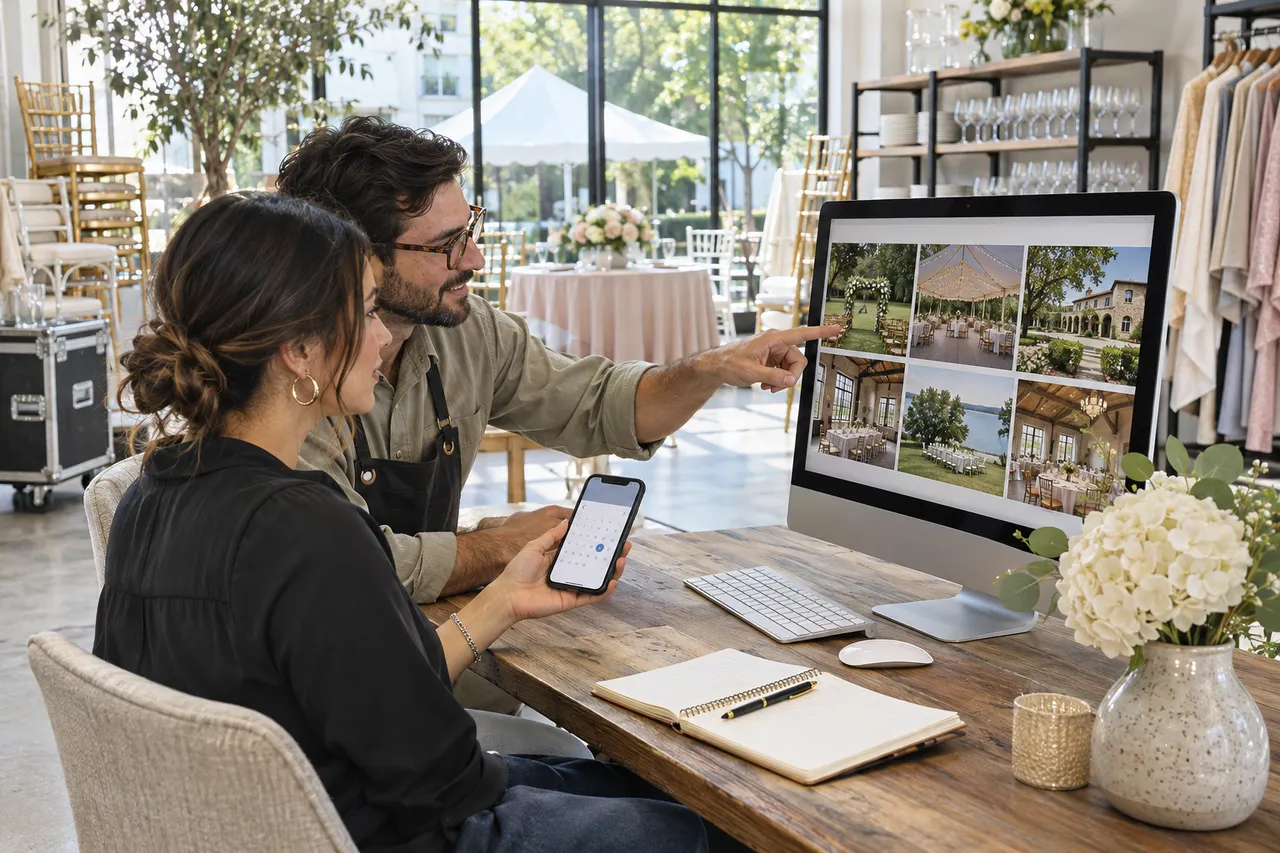
A small event furniture company uses Squarespace for its showroom photos, venue profiles and pickup instructions. A planner likes a photographed lounge set and wants to know if she can reserve it. The site currently sends her to a general contact page. She has to type the package name from memory, and the office has to ask for the date and number of pieces. The company can keep the site people already know and improve the step that takes a visitor from the photos to a workable reservation.
Decide what the content site explains and what the rental booking system decides. The showroom can help someone choose a style or package. The booking system needs enough details to check availability and tell the customer what is possible. A clear connection can be as small as a button that opens the correct product or availability page. Use the least complicated path that meets the customer’s needs and that staff can verify whenever they update the site.
Map the handoff for one offer
Start with the furniture set or service that already attracts inquiries. Find the Squarespace page that introduces it. Identify the details that help someone choose, such as a photo, included pieces, size or normal delivery area. Put changes to stock, dates and amounts that depend on the order in the booking process that owns those decisions. Decide who can update each place and how they will check that the customer sees the same offer.
Write down what should happen when the visitor is ready. The button might open the specific package, take them to a list of options or start a request that staff approve. Match the wording to the outcome. “Check dates” fits a destination that actually lets people choose dates. “Request a lounge set quote” fits a form the shop reviews. Ask a coworker to click without coaching and tell you what they think will happen next.
Do the same review for a person who opens the booking link directly. They should be able to recognize the rental company and the package without having seen the gallery first. Put the most important details and a route to the main site where they can find them. A direct link in a text message, event guide or old email can be a visitor’s only starting point.
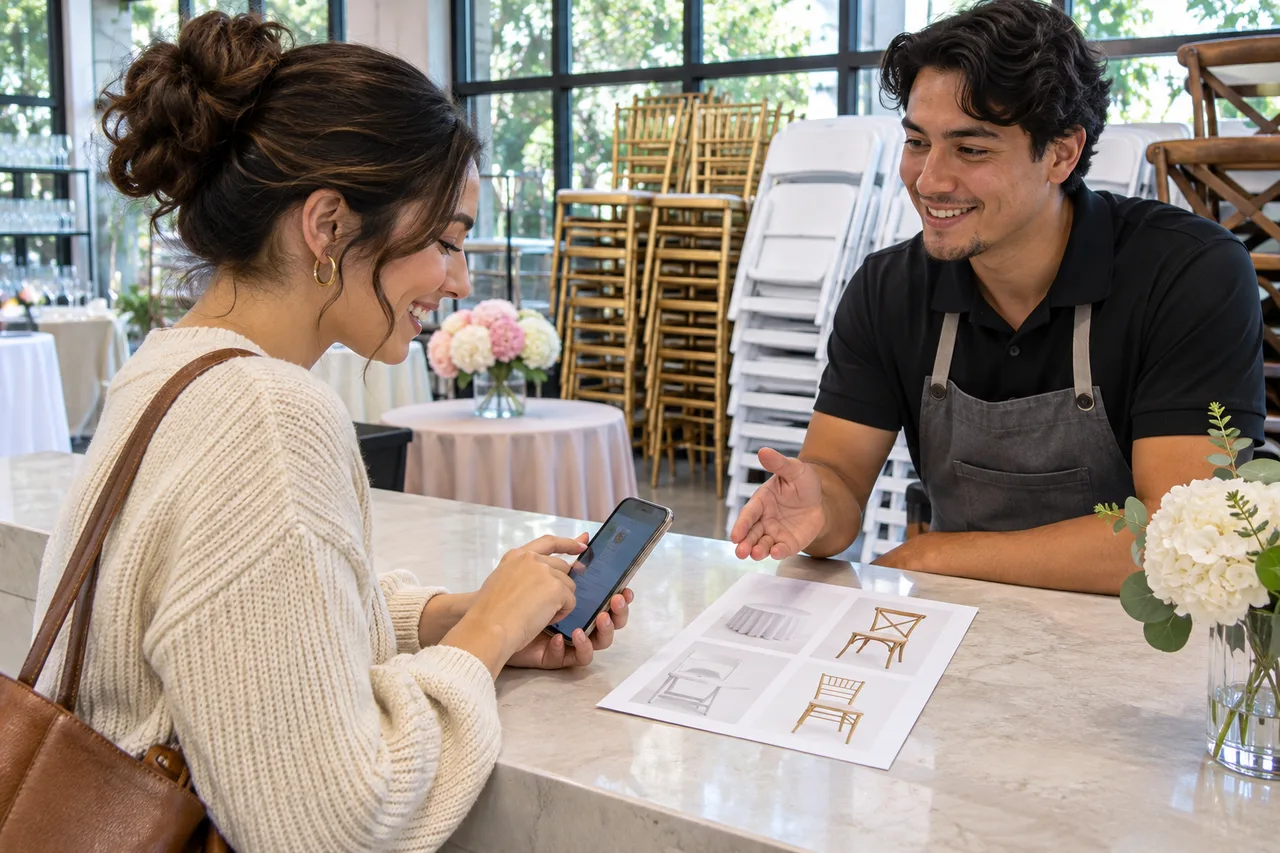
Start with a direct link you can test
Squarespace documents several ways to link to a third-party booking page, including a button, a navigation link and a text link. Start with whichever is easiest for the visitor to find. A button near the package details can lead to the exact offer. A main menu item can lead to the full booking collection for people who already know what they want. A text link can point someone to a particular follow-up from a delivery or help page. Squarespace online booking guidance
Use a destination that your rental booking provider supports linking to. Check that it still opens for a signed-out visitor. If the destination uses a different address than your marketing site, use a consistent business name and product title so the handoff feels familiar. Put the most relevant action next to the product explanation. Avoid assuming the reader noticed another button on the homepage.
Open the new link from a phone, a laptop and an ordinary email. Confirm that it reaches the intended item on each path, and that the customer can use the link without a staff login. Try the browser’s Back button after opening the booking page. If you decide to open a new tab, verify that this is practical in the customer’s browser. The person should always know where to return for the event photos or delivery details.
Choose carefully when using an embedded experience
An embedded booking control can be useful if the customer benefits from choosing a date alongside the gallery. Use the booking provider’s current embed option and verify that Squarespace supports the required code for your site and plan. Squarespace’s guidance distinguishes integrating its scheduling tools from linking to other booking software or embedding a third-party widget. Choose based on the equipment availability and rental process you need.
Use a test page to inspect the embed with the actual theme and device sizes. Check whether a customer can select dates, submit the intended details and find the response while scrolling. An embed that works in a wide desktop preview may create a horizontal scroll area on a phone or leave the confirmation outside the visible region. Try moving through controls with a keyboard if that is part of your normal accessibility check. Include one error state in the test.
Keep a direct booking link reachable if the embed is slow or unable to load. Make clear where it will take the customer and what information they might need to enter. A direct link can also give staff a reliable starting point for support. Test it with no embed visible, so you know whether the page can still guide a visitor in that state. Use a booking method the rental team can service even when one way to access it is unavailable.
Put stock and scheduling decisions where orders are accepted
A page can show a lounge set long before a customer chooses a date. When somebody chooses a quantity, date and service period, the booking decision needs the current commitments. Use the same records for website orders and for requests staff approve by phone. If the Squarespace page only collects a quote inquiry, require the person sending an offer to check the schedule before committing stock.
Try a deliberate conflict. Suppose you have six matching tables and the first organizer books four. Ask for two and then three on the same date. Change the request to a date after the rental team expects the first four to return and clear inspection. Look for the answer in the tool where a booking can become final. A website introduction can be clear and attractive while the calendar handles more complicated timing. Confirm that the customer gets useful feedback from the correct place.
Discuss the requirements that an appointment calendar alone may miss. One staff appointment could represent time spent in a showroom, while a delivery can claim multiple items, a truck window and setup crew. A booth can be booked for an event and still need setup and travel time. Check whether the relevant rental tool constrains those resources, or whether staff need to review them before confirming. Use test cases based on your own jobs instead of adopting an availability display by appearance.

Coordinate content edits so the two sites agree
Assign names, descriptions and operating details to the people who maintain them. The gallery can highlight the appearance of the set. The booking listing should identify the items and quantities that can be reserved. If both sites show a starting rate, specify who checks that they agree when pricing changes. An alternative is to show the basis for the offer and link to the booking tool for a current total. Keep the practice consistent across packages.
Make two harmless changes in a test setup. Add a current photo to the marketing page and rename a sample product in the booking tool. Check the product destination, the text around the button and any old links people may have saved. If a booking product is archived, decide whether to remove the gallery mention, redirect its action or offer another product. Explain the choice to the people who answer customer questions.
Keep an inventory of the links that start bookings. Include the product or package, the Squarespace source page, the intended booking destination and one person responsible for checking it. Add links in text messages or partner pages you control if they bring customers to specific offers. A small table of destinations can help the shop fix a broken link after somebody changes product names or rebuilds the navigation.
Design a quote handoff that arrives with the right details
Some jobs need manual review even when the storefront and booking tool are connected. A lounge set might need to fit a lift, travel through a service entrance or be installed during a short window. If the marketing site starts the inquiry, ask for only the decisions needed for a useful reply. Include the selected package if the customer is already looking at it. Ask for date, location and relevant access details before sending the form to the office.
Check what the employee receives and how they begin the actual quote. Give them a way to record the selection and date in the right system. When they know what stock and crews can be provided, they can send the supported quote or booking step. Let the customer know when the request becomes a confirmed rental. The original acknowledgment can say what the business will check without promising the equipment yet.
Try an incomplete request and a successful one. Record which fields are missing, whether the customer can correct them, and if the acknowledgment still describes the next step. Ask the office to answer both as it would for a real lead. A real path works for the person planning an event and for the staff member trying to find out when or where to send a truck.
Review payment and customer messages at the change of site
Use a supported practice setup to send a quote or start checkout from the actual Squarespace page. Confirm which service is taking the order and which service sends email. Customers should recognize the business, know what they agreed to and see the correct items and period. If a payment is due in stages, make the amount and next action clear where customers approve the order. Keep any agreement and full conditions reachable.
Test after a paused or cancelled attempt if the practice environment supports it. The customer should know whether they sent a request, placed a booking or stopped before completion. The office should be able to look up the same state using the relevant reference. If an item is held for a short time, make sure staff can tell what is holding it and when capacity returns. Follow one practice return or schedule change from the email to the booking tool.
If a visitor who already booked comes back to the marketing site, give them a link or help route for an existing order. The new request form can remain focused on new work. People who need to change the delivery address should be able to find the right support without preparing a new inquiry for the same item. Confirm that staff can use the contact route the public site describes.
Give visitors distinct routes when the site serves multiple offers
A single showroom website may serve a pickup business and a full-service division. Their rules can differ even when the same chairs appear in photos. For a pickup package, the person may select dates and collect from a known address. For a staffed installation, the team may need to review the venue and labor before offering a rate. Make the link describe the relevant action and check what business and fulfillment method the other site shows.
Create a small map with one row for each division or branch. Include the page a visitor starts from, the location or business the booking destination opens, the type of request accepted and who gets the notification. Add an example where a customer is closer to a branch that has fewer varieties. If the business transfers furniture between locations, the site should treat that as part of the order process. The marketing page can explain where the company serves people while the booking side makes the specific commitment.
Test links from shared material such as a venue handout. Where a link goes to a collection, show a way to narrow to the relevant group. Where it goes to a single item, verify that the item belongs to the right business. A direct route with the correct product should still be useful to a customer who arrives on a holiday weekend. Give staff a handoff process for referrals that point to a retired offer or a branch that no longer handles rentals.
Roll out from one page and keep a known recovery path
Pick one existing gallery or package page with enough ordinary inquiries to exercise the handoff. Keep its current title and description while you add the booking route. Test a successful attempt, a blocked date and a question for the office. If the page already receives referrals from an event organizer, ask someone to follow the saved path from that referral. Add a note of the old destination and the current fallback so the office can help if somebody shares a link that predates the update.
Set a short observation period and ask staff to flag requests that arrive with the wrong item or without a usable date. Compare the questions raised after the change with what employees saw before it. If people start on the right gallery and consistently open a different product, check all the link placements before changing the booking system. If people reach the intended product but struggle to enter dates, review that part of the flow and use the provider’s normal support route with a reproducible case.
Write down how to direct people to the known working booking path if a site edit causes trouble. A verified collection link may be a better temporary route than leaving a button that looks ready but goes nowhere. Give an employee the authority to restore that link and communicate what happened. Test the alternative before relying on it and keep the same language about whether the customer is making a request or a reservation.
Once that offer works, repeat the connection on a second page with a different kind of request. Compare what you can reuse with what belongs to the specific product. Menus, delivery instructions and account links can be shared. The button and any context about the package should match the booking destination. Add the remaining galleries a few at a time so the staff know which ones were tested and can identify which pages still route to a general contact form.
Watch where people hesitate after launch
Follow several representative customers through the page and the booking destination. Use practice details in a test environment when you need to submit. Ask test participants what they expect before opening the link and whether the destination matched that expectation. If customers commonly click a beautiful gallery photo thinking it starts a rental, give them an obvious link near it. If they cannot tell which page owns availability, adjust the copy near the date action.
Compare genuine inquiries or completed bookings with the traffic and support questions you can observe. One useful signal is how often someone reaches the office without a usable date or package. See whether the same problem appears after a link change, gallery update or revised booking rule. Use the evidence to decide whether the connection needs to change or the offer simply needs better explanation.
Keep an easy retest on a shared checklist. Open one package from the actual marketing page, check availability for a date that works, check a date that does not, and verify that a request reaches the right employee. When the booking tool changes a route, verify the old and new links where your customers use them. Run the same test after a template edit if the navigation or booking button changed.
A Squarespace site can help someone picture the event and decide whether the rental fits. The booking process can verify the date, quantities, service and commitment. Link the two where the customer is ready to act, test the handoff from a real device, and let staff confirm the same order on their side. That is what turns a useful gallery into a dependable way to start a rental.