Design online checkout around rental decisions
Design rental checkout around the decisions customers make about equipment, dates, pickup, delivery and payment.
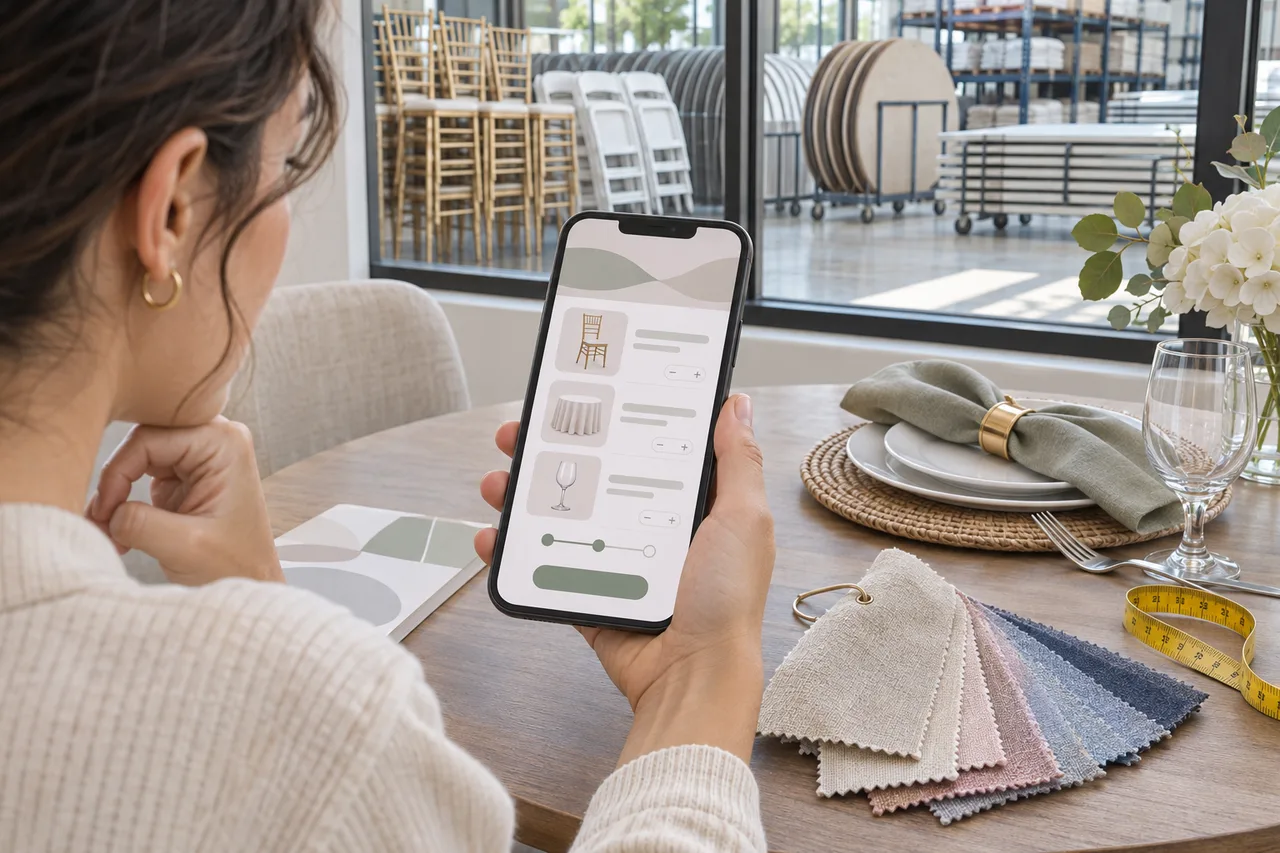
Someone renting forty chairs has questions a person buying forty chairs would never face. They need to know when the chairs can be picked up, how long they can keep them, whether they fit the venue and how the return needs to work. If checkout waits until the last screen to raise those questions, a customer who thought they were almost done may have to rebuild the whole order.
A good rental checkout puts decisions in the order the customer can make them. It keeps their choices visible, checks the constraints that can change the offer and gives them a clear outcome at the end. You can design that flow from a few real bookings and test it without accepting a live payment.
Choose the first decision from an actual order
Inspect a few common orders and identify what must be known before a customer can compare offers. For limited stock, the dates may be the first decision. For an item with several sizes, the customer may need to understand which size fits before picking a period. If delivery is the only available service, it may be useful to establish the service area before they build a long cart. Use the order’s biggest constraint to guide the first screen.
Make it possible to start with the information the customer has. A shopper with a firm date can check what is available. Another may start with the item and select a date later. Both should end up with a current item, quantity and time before the business makes a promise. If the shopper changes a date when adding another item, check the whole order and show what the change affects.
Help shoppers understand what they are comparing. A chair with a different seat height or a table of a different length may affect the plan even when the products look similar. Show the relevant measurements, included components, price unit and how the equipment is handed over. Keep full specifications accessible for the customers who need them. Put the facts most likely to change their choice beside the options.
Watch how the customer moves from one item to several. Give them a way to keep the booking period while returning to the catalog. Check whether the shopping cart is intended for one event or several scheduled uses. If they can choose different periods by item, identify those times next to the affected equipment. A reviewer should be able to tell which items will travel together without guessing.
Carry rental dates through the whole transaction
Use a date picker that asks for the dates or times that affect availability. An event on Saturday might require pickup Friday, with equipment returned Monday. Show the pickup, use and return periods where they matter. If the shop calculates charges from a defined rental period, connect the time selectors and price description so the customer can understand the difference.
Check the same equipment and dates as the shopper proceeds. An item can appear available when viewed by itself and become unavailable at the chosen quantity or with a shared kit. If the customer changes the time, tell them which items are affected and give them a way to adjust. Keep the rest of the cart intact where your process allows it. A small edit should leave the shopper with their other decisions available.
Handle what happens between the initial availability check and confirmation. Stock can change while a shopper is entering details. If a checkout step places a temporary hold, state what it covers and when it ends. If the checkout can lose availability before completion, explain the result and show what the customer can change. Verify that the backend uses the same time and quantity rules the storefront describes.
Tell the customer how the dates will appear on the final booking. A window can look different when written in a confirmation email than it does on a calendar. Use a clear date format with day and time and include the relevant time zone when it could be ambiguous. A confirmation should make sense to the person collecting equipment, even if someone else placed the order.

Get delivery and pickup details at the point they change the order
Offer only realistic service choices for what the shopper is renting. A simple pickup option can show the available appointment windows, item dimensions and return location. Delivery might begin with a postcode or area check, followed by the full address when the business needs it for a quote or route. Use the information you collect to give the shopper a meaningful answer.
Make the handoff scope visible. A checkout option can say “deliver to the service entrance” and offer placement as a separate service when supported. A shopper should understand whether staff will carry items up stairs, assemble them or return for collection. Ask for additional information only when the choice requires it. The customer who chooses pickup may not need to enter a venue contact at all.
Identify combinations that require staff review. For example, a custom delivery with a narrow access window may need the dispatcher to confirm a vehicle and crew. Give that order a request path with dates, items and site details already carried forward. State what the office will review, when a reply can be expected and how to find the request. If customers can still reserve other parts of the order, be specific about what they will have booked.
Check a change between methods. A shopper may switch from delivery to pickup after seeing the service cost. Preserve valid equipment choices, recalculate dates or rates that depend on the handoff and remove questions that no longer apply. If switching methods makes a product unavailable, show the actual conflict. The shopper can then decide which part of the order to change.
Let the customer verify the full offer before accepting it
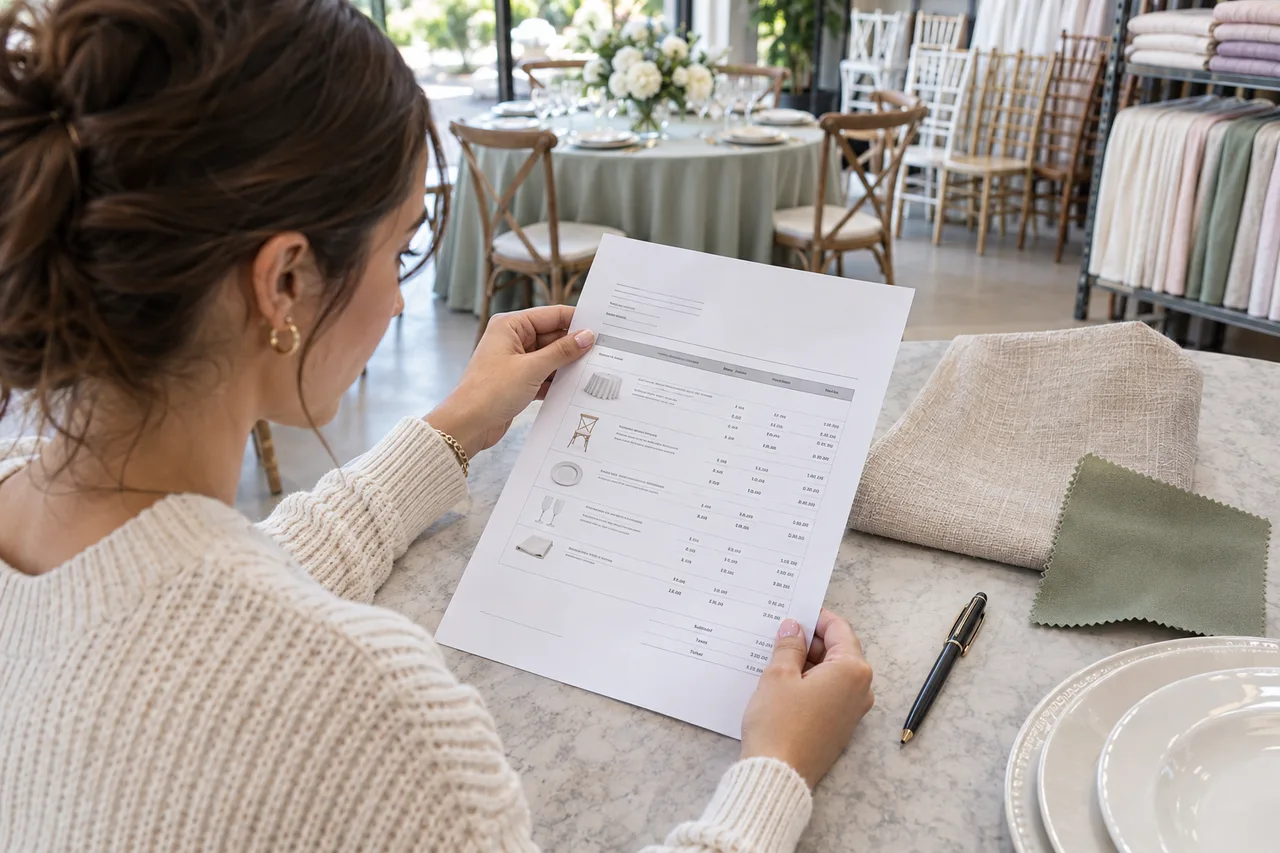
Put an order summary near the next action. Show item names and quantities, period, fulfillment method, service charges, total and any separate amount due at confirmation. Make important conditions accessible where the customer can review them. Avoid collapsing all the useful information into a line that says “rental package” if the shopper needs to verify the included pieces.
Show how changing an option changes the total. If the shopper adds a placement service, show the new charge and update the amount due where appropriate. If a discount depends on the dates or equipment, show it consistently in the cart and checkout. An item can have a per-day price, a weekend amount or a package price, so show which one applies to the booking.
Explain the payment step in operational terms. If submitting payment reserves the order, say what the customer should expect after it succeeds. If the business needs to approve an inquiry before taking payment, explain when that will happen and how it will be communicated. Keep separate amounts for future balances or refundable items easy to distinguish, supported by the business’s terms and actual checkout settings.
Use a readable mobile layout and let customers edit choices near the summary. A renter who notices an old date should have a way to correct it without losing the items already selected. Ensure the summary reflects the new result and any conflicting equipment. A short review can prevent a booking error when it gives the customer a visible way to act on it.
Collect the remaining information in a useful order
Ask for the details required to fulfill the selected service. A pickup booking might need a contact, confirmation address and the name of the person collecting. An event delivery may need someone who can meet the crew and instructions for the receiving point. Label optional fields clearly. If the business can work without a room number until later, say when it needs that information.
Keep errors close to the fields or choices they describe. If the date and return time conflict, show which value the customer can change. If the server cannot complete the booking, distinguish a correctable input from a problem that needs the office. For a request the business could still fulfill, offer a next step with the order context where practical.
Design the flow for people using a phone, a keyboard or their usual assistive tools. The customer should be able to find the current step, read a change in totals, choose a date, correct information and continue. Test with error states as well as a normal booking. An error at the bottom of a screen is easy to miss if the customer’s attention goes back to the field they just completed.
Keep the payment flow tied to the order state. Use the approved provider and test through the normal supported process. If a customer returns from a canceled payment, show what happened in the booking and provide a path to continue when possible. Avoid requiring a customer to guess whether trying again would create a second order. The office should be able to see the latest payment and booking state together.
Walk a simple pickup and a staff-reviewed delivery side by side
Imagine a customer wants forty black chairs for a Saturday lunch. They select their dates and see a Friday pickup and Sunday return available. The cart shows forty chairs, the full price, the pickup site and both windows. At checkout the customer enters who will collect, reviews the amount and finishes the required payment. The confirmation contains the same quantities and dates and tells them where to go.
Now consider a shopper ordering the same chairs for a venue that asks for setup in a second-floor room. They choose delivery and indicate indoor placement. The checkout can calculate the equipment price but needs a staff decision about the room, elevator and access time. The shopper can submit those details with the order. They receive a request reference and a clear explanation of what will be checked. The scheduler sees the same dates and requested service.
If the delivery requires a different handoff, the staff member can offer it from that request. The customer reviews the revised scope and approves it through the normal process. The office can then see a confirmed booking and the warehouse receives the correct list. The original request remains useful as context rather than being the only place the customer’s approval was recorded.
Use these two scenarios to check the site’s labels. A shopper in either path should know whether anything is confirmed at the end. A worker opening the order should be able to tell which equipment is allocated and which details need attention. If the same button or status means different things in both paths, rename it around the actual outcome the customer receives.
Handle changes without making the customer start over
Identify the decisions that can stay in place when an input changes. A corrected contact name should leave the dates, equipment and price intact. A new pickup location may affect all three. Recheck the relevant facts, then show the shopper what changed. If two tables can still be reserved and only one of three linen sizes is unavailable, highlight the linen choice and keep the rest available to review.
Plan what happens when an online booking pauses before confirmation. A customer may leave to ask whether the venue can accept delivery or finish payment in another tab. Keep the order reference or cart where your process supports it. On return, show the status clearly. If the price or stock is no longer current, ask the shopper to review the new result before they continue.
Test a change after a booking is confirmed. The customer who needs two more chairs may be able to request the change from their confirmation, but the booking still needs the current availability and updated amount. Distinguish the current order from the requested revision and record what the customer has already accepted. If they choose a different return time, recheck the warehouse’s window and any booking that depends on the equipment coming back.
Teach staff how to help when the shopper cannot recover the attempt on their own. An order reference and the requested dates make it easier to identify the case. The office should be able to see whether payment was completed or stock is held through the usual booking record. Use private test examples to verify that providing assistance gives the customer one clear order and a confirmed next step. A checkout can be easy during the first attempt and still benefit enormously from a clear recovery path.
Test the common problems before opening the flow
Use fictional orders and the supported test payment setup. Try a successful booking, an unavailable product, an invalid return time, a delivery outside the area, a staff-reviewed quote and a canceled or failed payment. Test a revised cart with a product that consumes a shared accessory. For each, record what the customer sees and whether the back office has the same booking state.
Check a return from another page. A browser tab might be closed while the shopper is waiting for payment and reopened later. Test the normal recovery path. If a price or availability changes, show the current result before asking for another payment. Have someone review what happens when two shoppers attempt to reserve the last units during the same test window.
Ask someone who did not design the checkout to describe the order just before they submit. Compare their description with the booking you expect to receive. Watch what they do when they notice an error. The lowest-friction paths often come from putting information in the place they already looked, instead of giving them another screen to read.
Try the process from the office, too. Create the expected booking in a safe environment, open its dispatch or pickup view and check that its dates, products and commitments match the confirmation. A customer-facing checkout can appear polished while the handoff still needs manual repair. Include both views before calling the flow ready.
Let the first orders guide the next improvement
Check which stage generates corrections and follow-up calls. If several people ask which pay-now amount applies, move or clarify the payment information. If staff often have to obtain a dock name after a quote request, expose that question when the selected service needs it. Start from one repeated issue and measure whether the change helps.
Keep a short record of what the current checkout supports. Include the supported booking paths, the service conditions that trigger review and which details are passed to the booking. Revisit it after a change to inventory, payment settings, delivery rules or the storefront design. Run the original examples again so improvements to one path do not interfere with another.
Measure the outcomes that matter to the business. Count confirmed bookings, useful quote requests and orders the team can fulfill as promised. A renter whose date is full can still leave with a clear option. The checkout works when the customer knows what they agreed to, the business knows what to prepare and both can tell what will happen next.