Add social photos without slowing the booking page
Use selected social photos to help customers choose rental products, then test image loading and the booking path on mobile.
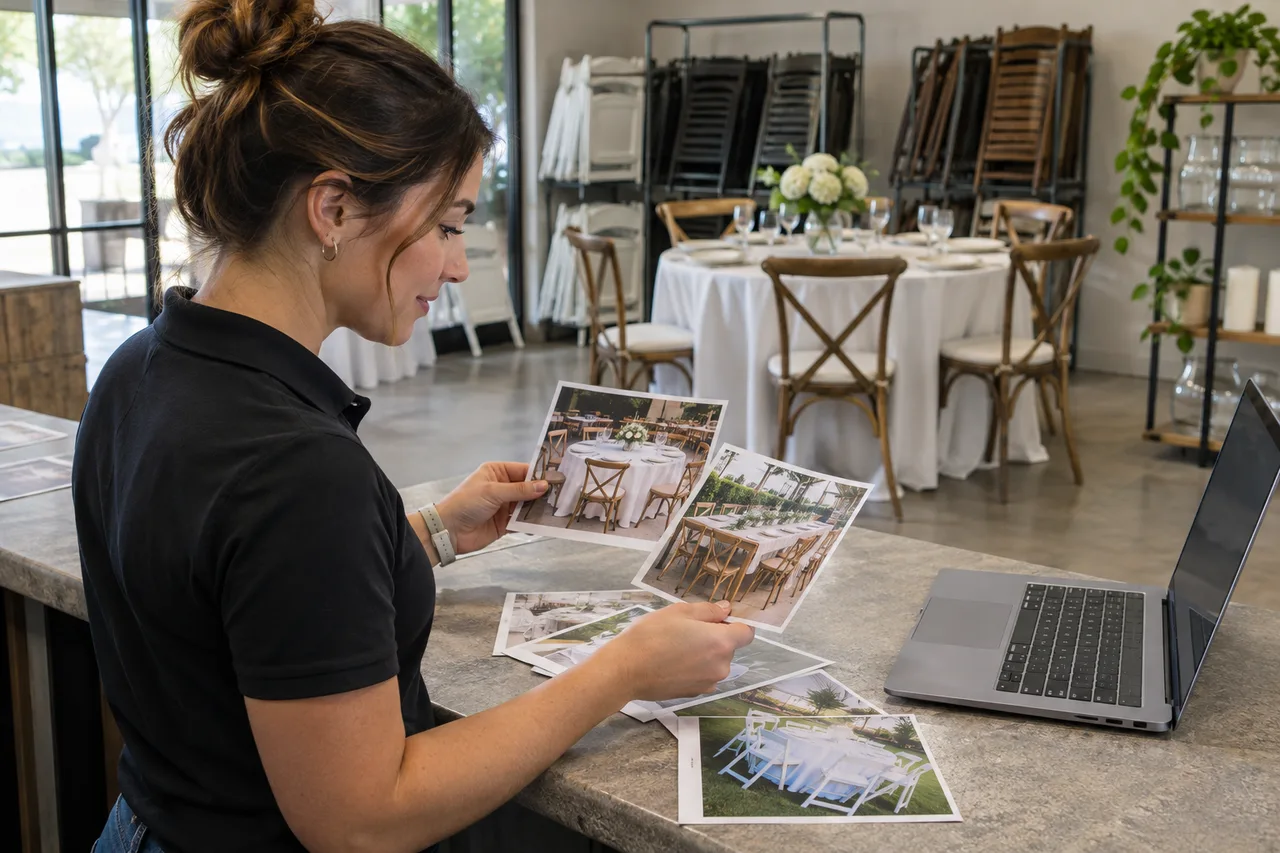
A rental shop adds its social feed to the page where customers check dates. The feed shows attractive events, but on a slow phone it loads scripts and several posts before a renter can comfortably use the page. The shop can keep useful photographs and give the booking task a clearer path. Start by selecting the images that help a customer make a decision rather than importing every new post.
Choose a small group of relevant photos, publish them with the appropriate permission and test the actual booking page before and after the change. Keep the key actions easy to reach and let secondary content load later when it makes sense. Review the results on an ordinary phone and in the tools the business uses to monitor the site. A photo earns its space when it helps a visitor recognize the rental and understand what to do next.
Decide which photographs help someone choose a rental
Think about a visitor who has reached the page with a date or product in mind. They may want to see the general size of a table, how a set of chairs looks in a room or what comes with a package. Choose an image that answers the question. Prefer a current setup the business can explain. If an older image shows a different product or a service the shop no longer offers, save it elsewhere or describe clearly what it illustrates.
Start with one or two examples rather than a long feed. Suppose the page introduces a set of tables and chairs for small indoor events. A wide image of the full setup can show scale and arrangement. A second photo can show the table and chair styles. If accessories shown in the photo are optional or supplied by the venue, put that information near the image. Keep the product description and rate information in ordinary page text, where customers can use it even if a photo is slow to load.
Match the images to the stage of the booking. A collection page may benefit from a few examples that help people browse. A date selector, cart or quote review needs a clear view of the current decision. Use the photo only if it adds context there. Place a larger gallery on a page where visitors are looking for inspiration. The booking page can keep its visual identity without asking every visitor to load the entire collection.
Check whether you may reuse the images and how they should be described
Use photographs the business owns or has suitable permission to display. Check any agreed credit, reuse terms and whether the images can be used in the place you want. A tagged post can help a business find a photo. Before copying it into a catalog or promotion, verify whether that use is permitted. If the original post contains recognizable people or details the business should keep private, choose an appropriate image and use the business's usual review process.
Save a suitable original under a clear name. Record what the image shows, the related product or category and when it was reviewed. Provide alternative text for a meaningful photo so a visitor can get the relevant information without seeing the image. For example, a short description of a set of ivory folding chairs arranged around a long table can help distinguish the picture from a generic room view. Include product limitations or optional items in nearby text. That keeps important booking information available to everyone.
Review the image again after cropping it for the site. The visible composition may no longer show every item in the original description. Make sure the remaining image still explains the intended point, especially for a phone with a narrower layout. Keep enough of the original to prepare future versions without redistributing a compressed copy.
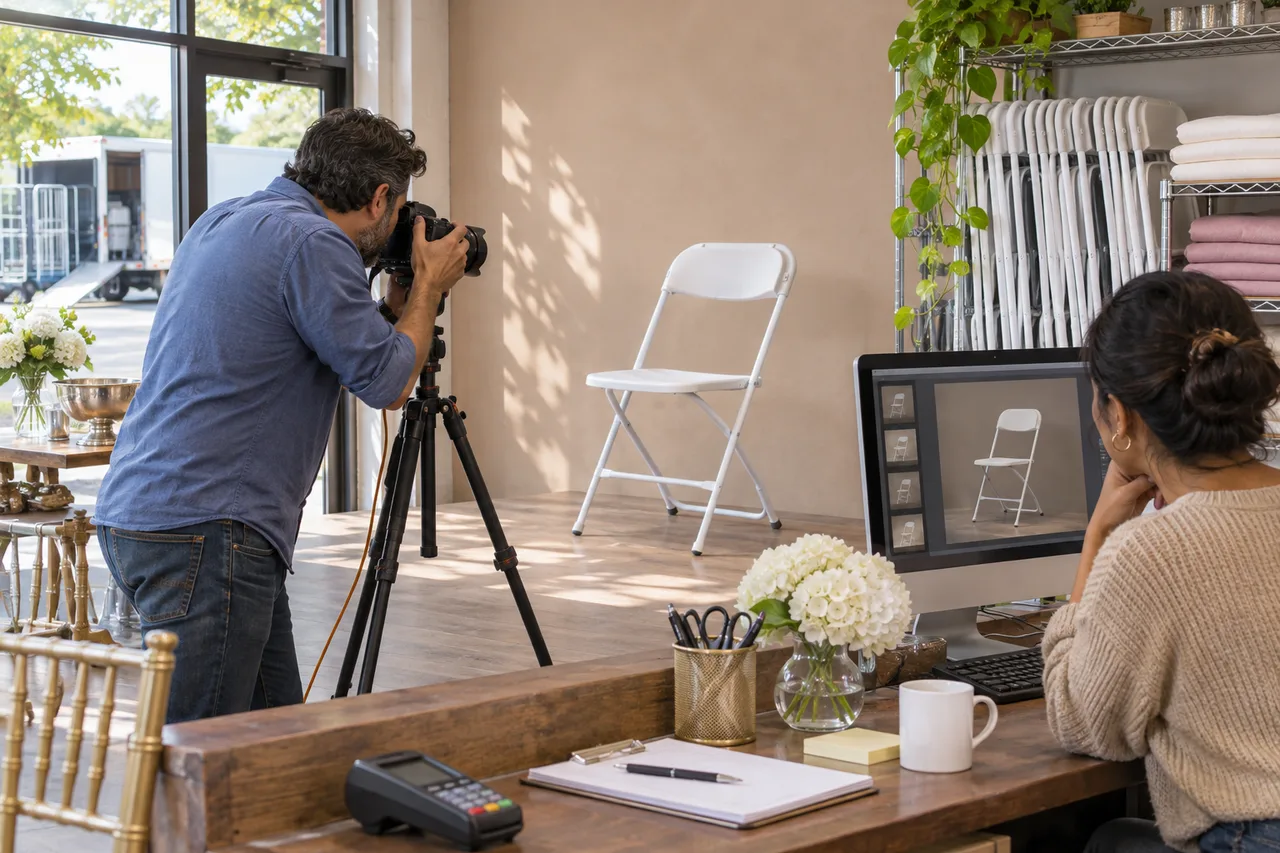
Choose a way to display photos that fits the page
Compare a small set of images you control with a live third-party feed. A feed can show recent activity, but the page may also have to load scripts, styles, extra images or other resources from the provider. Use the browser's network information or an appropriate performance report to see what it actually requests. A curated set can be easier to verify because the business decides which photos and sizes appear. A link to the social profile can still give visitors a route to see more.
If a live embed matters, test it on a page where people choose to view that content. Consider whether a thumbnail and descriptive link would answer the immediate question with less work for the browser. If the site can load an embed after a visitor asks to see it, verify that messages and controls still make sense in both states. Check the service's current options and applicable privacy settings before using a different integration. Make sure important booking steps remain available under the site's normal choices and restrictions.
Keep the source of the booking information clear. New images can come from approved social posts or a project album. Dates and quantities should come from the shop's booking system. Avoid letting gallery captions become a second informal catalog. A post created for a fall event may mention a service or quantity that no longer applies. Use a current link and text that point customers toward the actual offer.
Prepare images for the space they occupy
Use a file size and dimensions suitable for the displayed image. A small photo in a sidebar may need fewer pixels than a wide example at the top of the page. Export a few suitable sizes if the site supports serving different versions to different screens. Try sensible compression and inspect the results to confirm the furniture and details remain recognizable. Google's image performance guide covers responsive image delivery and formats such as WebP and AVIF.
Decide what users should see first. When a visible lead image is important to the page, make sure the browser can discover it promptly. Images farther down can often load when someone approaches them. Web.dev's guide to lazy loading images and frames explains why the approach is useful below the first screen and why it can delay an important lead image. Check how your builder or theme handles each photo. Avoid changing a load setting across the entire site without testing pages that depend on it.
Leave room for images to render without pushing the date fields or buttons around. If the site uses image dimensions or a stable aspect ratio to reserve space, compare it with the crop you actually publish. Verify that the intended text and controls remain readable while a lower image loads. A renter shouldn't tap the wrong control because a photo changed the layout mid-action.
Compare the booking page before and after the update
Make a baseline with the original page. Open it on a representative phone and navigate to a sample product. Note when the first useful information and booking action are available. Look at common page measurements in the site's normal preview tool if you have access to it. Record what the page loads, especially the resources related to the image section. Use a comparable connection, screen size and browser setup when checking the changed page.
Try an alternate page with the selected photos and the same booking information. Compare how long it takes to see the main product and to interact with the date or quote action. Check that visitors can still open a larger image if that's part of your design. Repeat with a fresh load and a return visit so an existing cached copy doesn't dominate the comparison. Don't conclude from one unusually fast run. Use a few comparable checks to see whether the same behavior repeats.
Look at the user path as well as the measurements. If a photo finishes later but the date action is already usable, the page may have achieved the intended change. If a collection appears faster and the booking controls still wait for an unrelated script, look into what else the page loads. Measure the steps that matter to the customer before and after each material change.
Have someone try the next step with part of the gallery unavailable
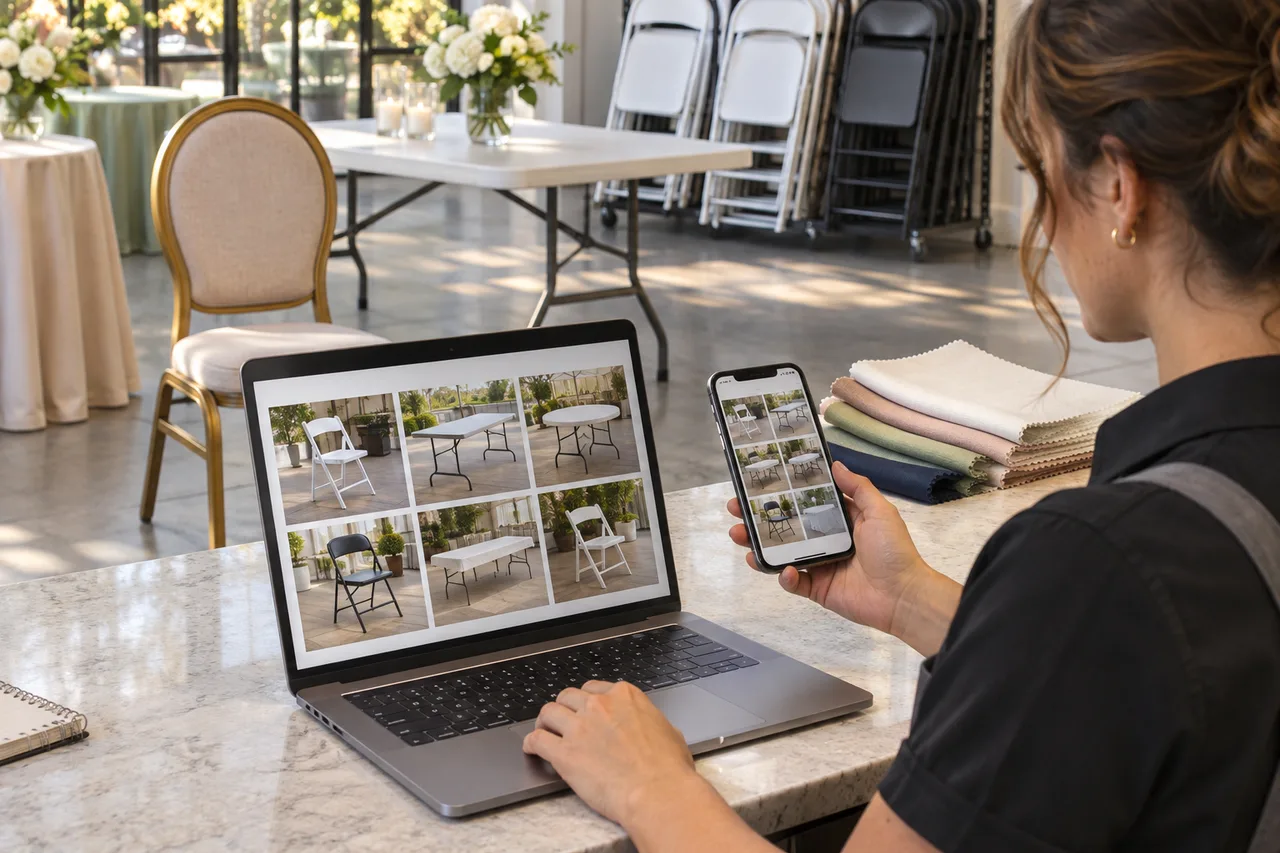
Ask a colleague to choose a product, check a date and use the booking or quote path on a phone. Don't tell them to wait for any secondary photos. Watch whether they can reach a clear decision with the content already on screen. Have them repeat the task from a direct product link. If a carousel or embed fails to load, confirm whether its absence affects product information or booking. The shopping action should remain understandable.
Try a different date or quantity. The results can show whether the page stays stable while a customer interacts with the form and an image is still loading nearby. Check whether an add-on dialog or menu can open without conflicting with a gallery overlay. If the page uses a separate storefront for reservations, follow the link and check that it opens the expected business and product. The photo should support the decision and leave the accepted order to the booking system.
Review access to the images and controls by keyboard as well. Try reaching any photo links, close controls and booking actions without a mouse. Meaningful image text and visible focus can make the route clearer. If staff have to add an image through a builder, check what happens when they use the usual workflow. Test the result with the same booking example rather than relying on the way the editor looks.
Run a comparison using the same three photos
Choose one room photo, a product detail and a second setup from a different angle. Put them on a practice copy of the product page using the site builder's ordinary image controls. Keep the price description, date fields and booking button in the same places. Compare that page with a version that loads a live social gallery. Test what the visitor can see before scrolling and what resources each version downloads for content they may never view.
For an illustrative example, imagine the gallery requests twelve images and a separate script before someone reaches the lower section. The curated page displays one sized image near the product description and waits to request the other images below it until the visitor moves down. Record the actual requests your site makes. Compare the bytes associated with the image section rather than assuming the same savings on every connection. Watch when the controls finish drawing and whether the visible layout shifts while photos load. The amount downloaded, the time to see the main content and the moment a form becomes usable each describe part of the result.
Try a page whose first visible content includes a large product photograph. Confirm whether the image is genuinely important in that layout. If it helps the shopper understand the item, use an appropriately sized, promptly available copy. Place the supplemental shots where someone can look at them after reading the most important information. A change that only postpones the photograph customers need can make the page feel worse even if it initially requests fewer bytes. Use the phone example to judge the trade-off.
Keep the task visible when the gallery adds its own controls
Test how the photo display opens, closes and returns attention to the page. If a visitor taps a visible image and a larger view opens, check that they can close it and finish selecting dates. If moving to the next image changes the size of the surrounding card, verify that a nearby button stays where they expect. A useful gallery gives people an opportunity to see more without making it difficult to return to the decision they started.
Review the same task with a busy product page. There might already be a menu, a quantity control and a dialog that displays an optional item. Try each with the photo section in its normal state. If the gallery covers the booking action or intercepts scrolling, choose a simpler presentation or move it somewhere appropriate. Check the captions and photo descriptions again after changing the layout. Explain the equipment with the same accuracy you want in a quote.
Check links to a social profile or venue credit where relevant. A person following a credit should be able to tell what the link opens, while someone who wants to keep booking should be able to ignore it. Confirm whether the public preview and the published version display the same content under the settings the business uses. Visitors should be able to understand the rental even if an outside service requires a separate decision before showing an embed.
Decide what the business will monitor as photos change
Pick one page to review after each round of seasonal images. Keep a record of the test screen size, which images are shown first and when someone could use the normal booking control. If you have comparable measurements from real visits, use them alongside the local checks. Quickly flag visible delay, layout shifts or problems with the next step. A page may receive a different mix of devices or visit patterns from one month to the next, so attach the observation to the details you can verify.
Have staff record a simple example when they change a photo. A note can say which item the picture depicts, which file was published and whether the customer can still complete the ordinary flow. If the shop adds a new gallery elsewhere, check that it didn't insert the same resources onto booking pages that don't use them. Keep the most relevant content in the workflow and review anything that only serves a larger portfolio. The goal is a page the shop can keep current without reversing the improvement after another photo update.
Give the shop a simple rule for the next photo update
Decide where the team will keep the current images and how it will choose new ones. Use photos that reflect actual rental stock or clearly identified examples. Check the file, crop and text, then preview the relevant page. Keep a current version of the product listing and know where to update it. If an image came from a campaign, record its intended use and any limits the business agreed to.
Review the main booking page after a seasonal gallery or theme update. Open the page on a phone, find the sample product and try its next action with the same baseline checks. If someone has added another feed or widget, see whether it loads resources before the booking controls. Keep the useful visual and remove extra loading where it doesn't contribute to the visitor's decision.
Try a final check from a shared link to that page. It helps reveal whether the product description and booking action still make sense when people skip the home page. Compare the image they were told to expect with the equipment they can actually select. Give staff a clear place to correct an old caption or link if it no longer matches.
A few well-chosen social photos can make the shop's work concrete. Give the customer a useful picture of the equipment, keep the booking information up front and test the page they will actually use. Then choose the next image based on the question it helps answer, with enough care that the rental path stays usable.